
To allow CourseCo to send emails through Microsoft 365 using Microsoft Graph, your Microsoft 365 / Entra administrator needs to create an app registration in Microsoft Entra ID, generate a client secret, and grant the correct Microsoft Graph permission. For app-only sending, the main permission typically required is Mail.Send under Application permissions. Microsoft Graph app access is controlled through Microsoft Entra app registration and consent.
Below user guide was taken from Microsoft
This guide explains how to configure a Microsoft Entra application so CourseCo can send emails through Microsoft 365 using Microsoft Graph.
An administrator in your Microsoft 365 tenant must complete these steps and provide the required credentials to CourseCo.
Information we will require from you once setup is complete:
-
Tenant ID
-
Client ID (Application ID)
-
Client Secret Value
-
Sender mailbox email address
Step 1 — Register a new application
-
Sign in to the Microsoft Entra admin center: https://entra.microsoft.com
-
Navigate to Identity > Applications > App registrations
-
Select New registration
-
Enter an application name such as CourseCo Email Integration
-
For Supported account types, leave as Accounts in this organisational directory only (Single tenant)
-
Select Register
Once created, you will see the Application (client) ID and Directory (tenant) ID on the Overview page. These will be required later.
Step 2 — Add the CourseCo redirect URL
CourseCo requires a redirect URL so Microsoft can return the authentication response during setup.
-
In the app registration, open Authentication in the left menu
-
Select Add a platform
-
Choose Web
-
Enter the following Redirect URI:
https://yourdomain.courseco.co/admin/messaging/oauth_set
or
https://yourdomain.com/admin/messaging/oauth_set
Do not add ‘courseco.co/’ to the domain, if you do not have this in your current CourseCo platform.
-
Select Configure or Save
Important: The redirect URL must match exactly as shown above or authentication will fail.
Step 3 — Create a client secret
-
Open the app registration
-
Go to Certificates & secrets
-
Select New client secret
-
Add a description such as CourseCo Integration
-
Choose an expiry period based on your organisation’s security policy
-
Select Add
Immediately copy the Secret Value and store it securely.
Important: Microsoft only shows the secret value once. If it is lost, a new secret must be created.
Step 4 — Add Microsoft Graph permissions
-
In the app registration, open API permissions
-
Select Add a permission
-
Choose Microsoft Graph
-
Select Application permissions
-
Search for and select Mail.Send
-
Select Add permissions
This permission allows the application to send emails via Microsoft Graph.
Step 5 — Grant administrator consent
After adding the permission:
-
In API permissions, select Grant admin consent for your organisation
-
Confirm the action
Admin consent is required before the integration can send emails.
Step 6 — Confirm the sending mailbox
Please confirm the Microsoft 365 mailbox address that CourseCo should use to send emails, for example:
This mailbox must exist in your Microsoft 365 tenant.
Once the setup is complete, Login to CourseCo, have the below info ready
-
Tenant ID
-
Client ID (Application ID)
-
Client Secret Value
-
Sender mailbox email address
To add details to CourseCo:
-
Login as Admin
-
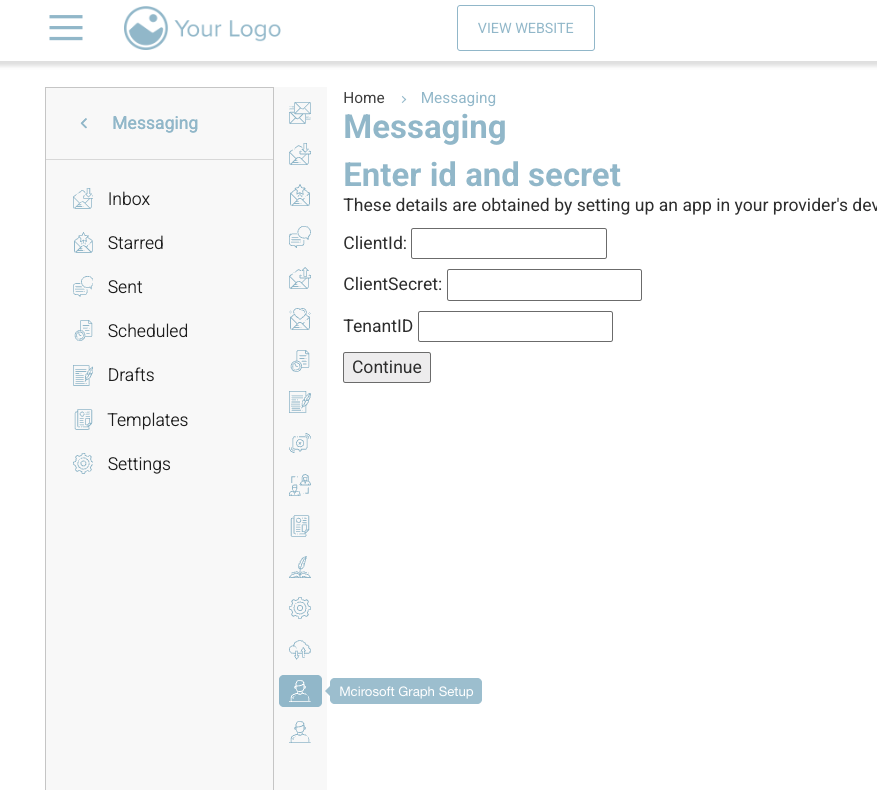
Open messaging > Down the middle icons, select ‘Microsoft Graph Setup’ or add /admin/messaging/custom_settings/email-microsoft_graph to the end of your domain.
-
Enter the client id, client secret ad tenant id
-
select continue
-
You will be redirected to Microsoft and must verify the connection
Last checks to confirm all is configured correctly
First, confirm the Graph permission is correct.
In Microsoft Entra → App registrations → API permissions, the app should show:
-
Microsoft Graph
-
Mail.Send (Application)
-
Admin consent: Granted
If consent is missing, the integration will authenticate but email sending will fail.
Second, verify the sender mailbox exists and is licensed.
The mailbox you configure (for example training@company.com) must:
-
exist in Microsoft 365
-
be an Exchange Online mailbox
-
have an active license
Shared mailboxes can work, but some tenants restrict app-only sending from them.
Third, confirm the app is allowed to send mail as the mailbox.
Some organisations restrict Graph apps so they can only access specific mailboxes. If that policy is enabled, the mailbox being used must be included in the allowed list. Otherwise the API call will return permission errors.
Fourth, test sending a single test email.
The easiest validation is to send a test message from CourseCo (use quick messaging to do this) and check:
-
the email is delivered
-
the From address appears correctly
-
the message is not blocked or quarantined
If it fails, IT should check Exchange message trace in Microsoft 365 to see whether the message was rejected or filtered.