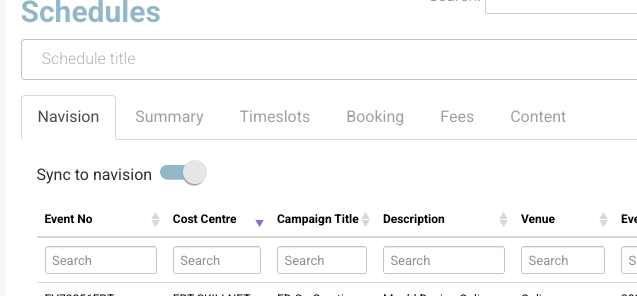
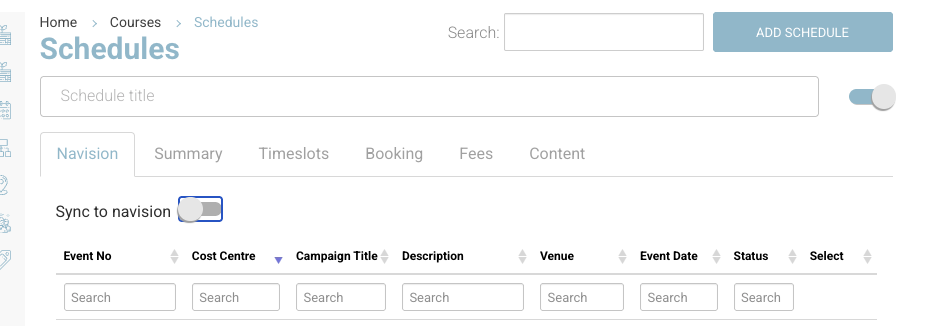
In some cases, you may want to take a booking and not sync it to Navision.
Follow the below steps to ensure
-
Your booking is not synced to nav as it has no nav event
-
ensure it does not appear as a pending booking waiting to be synced to nav
Create schedule with no nav link i.e. do not sync bookings to nav
-
Login as admin
-
Create new schedule.
-
On the Nav event tab, disable the ‘sync to nav’ toggle.
-
Continue creating schedule as normal, without selecting a nav event.
Outcome
-
Bookings will be confirmed on CourseCo only
-
Bookings will remain in CourseCo and will not sync to nav
-
The pending nav reports will not display these bookings as ‘nav sync' is off.
Additional note:
CourseCo supports new schedules with this toggle on or off
CourseCo does not support editing nav event sync after receiving bookings.