
CourseCo uses Stripe to take credit card payments via the website. Once configured and live, you can start taking payments on the frontend of your website.
To install Stripe credentials into CourseCo, follow the below steps
Connecting Stripe to CourseCo
CourseCo uses Stripe to securely process credit card payments on your website. Once connected, you can start taking payments directly through your booking pages.
Step 1: Create or Access Your Stripe Account
-
Go to Stripe and either:
-
Sign in to your existing account, or
-
Create a new account if you don’t already have one
-
-
Complete Stripe’s onboarding (business details, bank account, etc.)
Step 2: Retrieve Your API Keys
-
In Stripe, go to Developers → API Keys
-
You will see:
-
Publishable Key
-
Secret Key
-
Important:
-
Use your Live keys when going live
-
Use Test keys if you want to trial payments first - you can test either, but go with live if you’re ready to start taking real payments.
Step 3: Add Stripe Credentials into CourseCo
-
Log in to CourseCo
-
Navigate to:
Settings → Payments → Stripe -
Enter:
-
Publishable Key
-
Secret Key
-
Disable Test mode if you entered live credentials
-
-
Save your settings
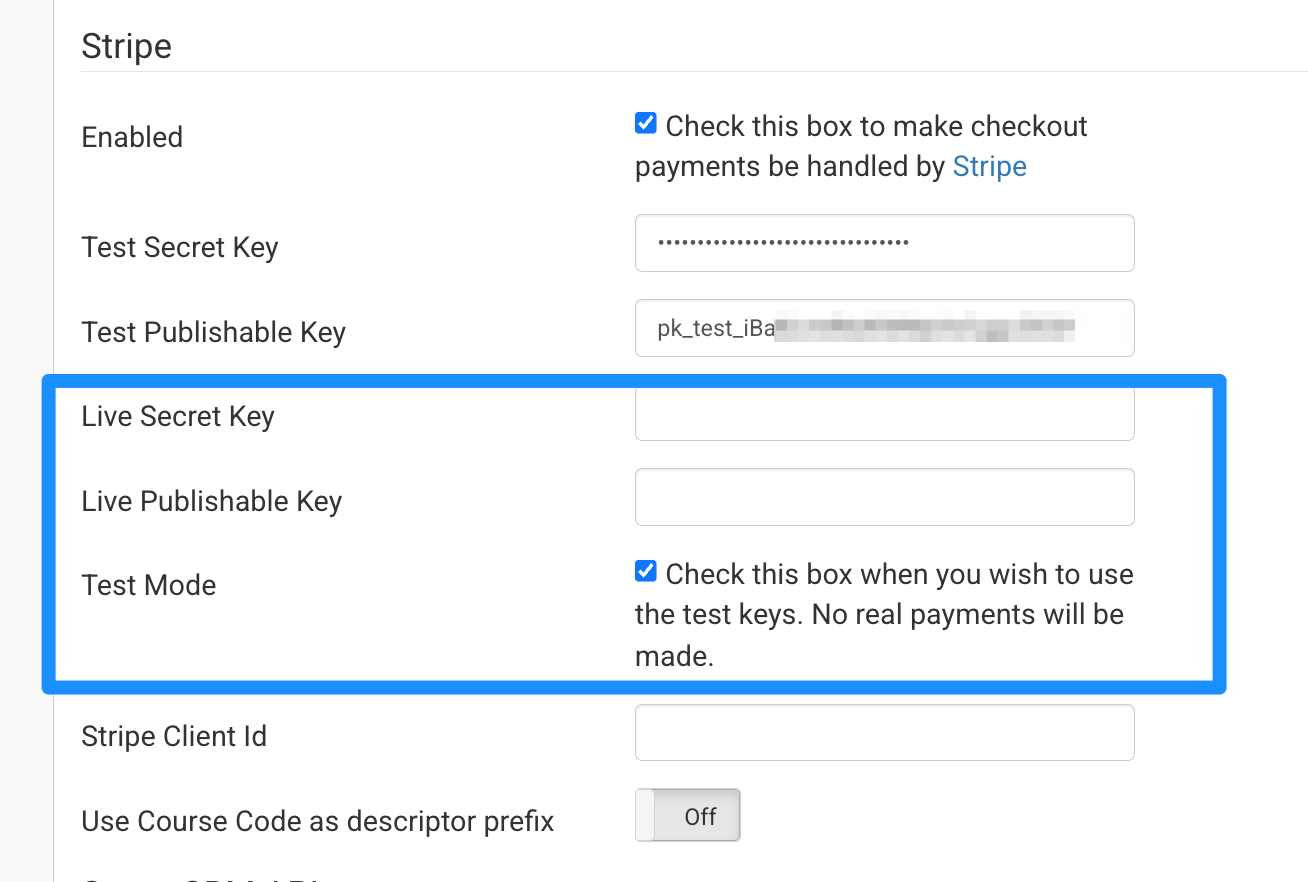
Settings > Stripe
Step 4: Test the Connection (Recommended)
-
Navigate to the website (ensure there is a published schedule)
-
Complete a test booking on your website
-
Confirm:
-
Payment is successful
-
Booking appears in CourseCo
-
Transaction appears in Stripe
-