
Editing the Date or Time on a Schedule with Existing Bookings
Admins can update the date, start time, or end time of a schedule even when delegates are already booked. Follow the steps below to make the change safely.
Steps
Log in as an Admin
From the left-hand menu, select Courses
Click Schedules
Search for and open the schedule you want to edit
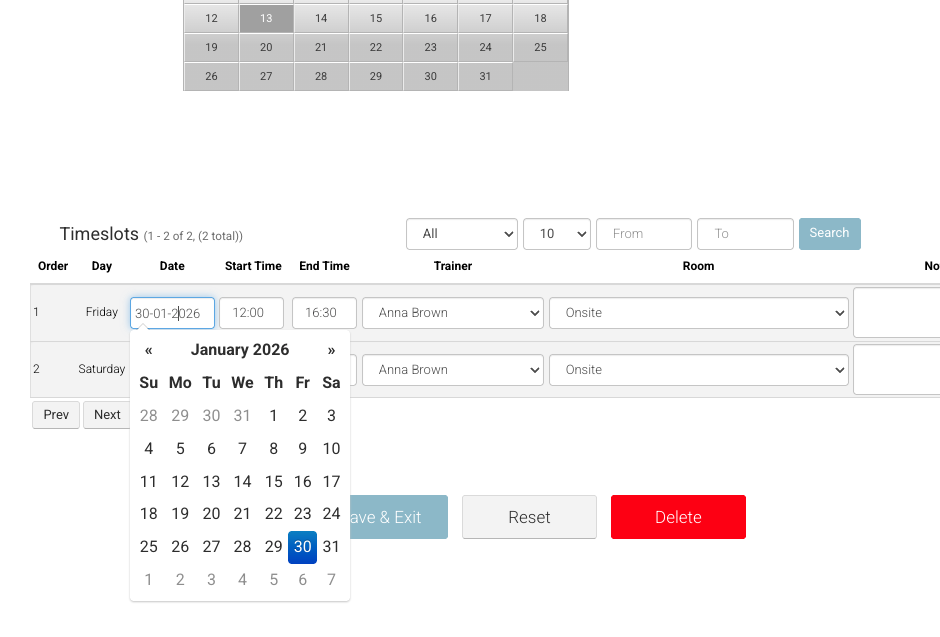
In Schedule Details, open the Timeslot tab
In the timeslot bar:
Update the date as required
Update the start and/or end time as required
Click Save and Exit
Outcome & Important Notes
The schedule will be successfully updated with the new date and/or time.
All existing bookings remain intact — no delegates are removed.
The timeslot is updated, not deleted.
Booked delegates will NOT receive an automatic notification about the change.
Notifying Delegates of the Change
To inform bookers or delegates of the updated date or time, you can choose one of the following options:
Run an automation on the booking and re-trigger the booking confirmation to the booker and/or delegate
orUse ad-hoc Quick Messaging by Schedule to send a one-off email to all attendees
Capacity Reminder
Updating the timeslot does not change the schedule capacity
Booked delegates continue to occupy their places on the schedule