Delegate Allocation | Identifying bookings with pending names
When a booking is made with pending names, the admin team must allocate the correct delegates before the course begins. Pending names can be spotted from several areas within the system.
This guide explains each location and what indicators to look for.
Pre-condition
A booking has been created with pending names, meaning the booker selected a quantity but did not supply all attendee details.
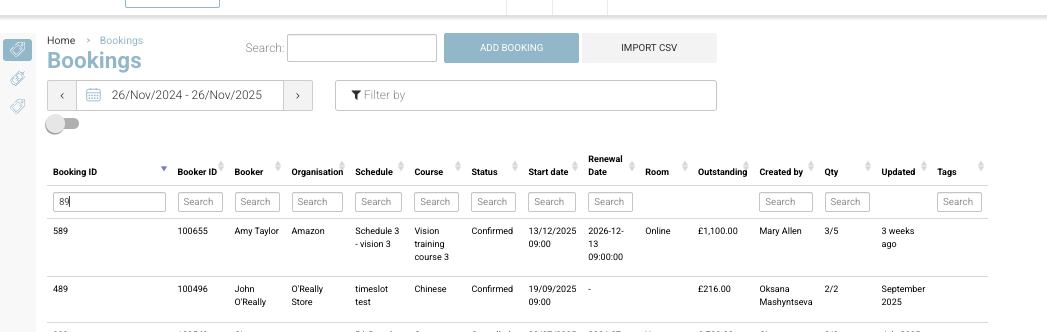
Bookings List Screen (Qty Column)
On the Bookings page, the Qty column clearly shows assigned vs. total delegates, for example:
3/5 → 3 delegates submitted, 2 still pending
0/4 → All four names are outstanding
5/5 → Fully allocated
How to identify pending names:
Go to Bookings
Look at the Qty column
If the first number is lower than the second, there are pending names
This is the quickest, high-level way to monitor incomplete bookings.
Schedule > Attendees Tab
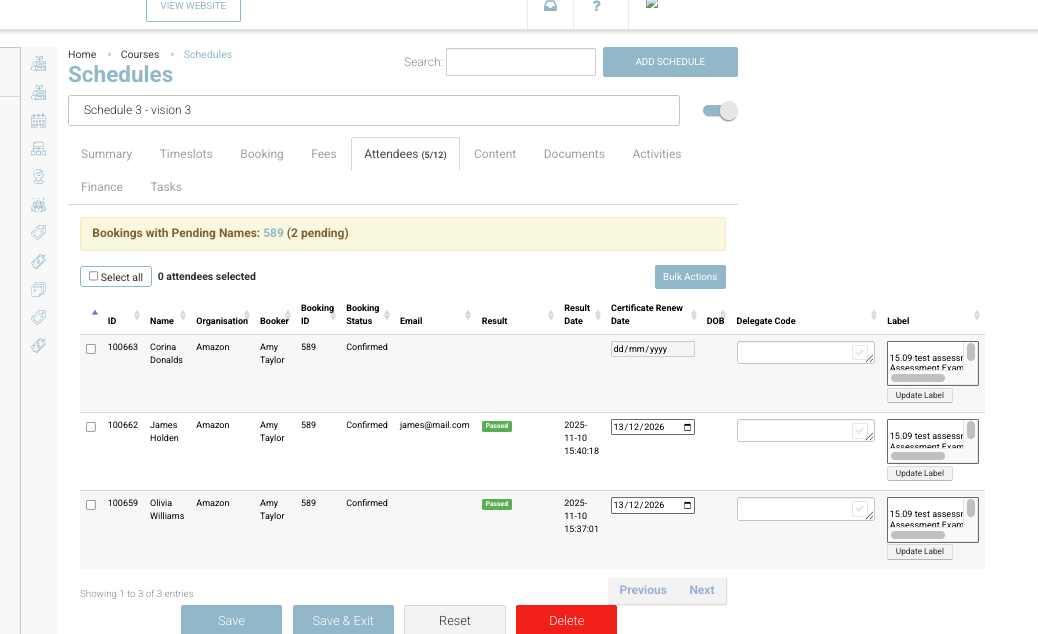
Within the schedule itself, pending names are highlighted clearly at the top of the Attendees tab.
You will see:
Bookings with Pending Names: [Booking ID] (X pending)
For example:
589 (2 pending)
This lets you immediately identify both:
Which booking still has names missing
How many names need to be added
How to find it:
Go to Courses > Schedules
Open the relevant schedule
Select Attendees
Look for the Bookings with Pending Names notification
Timetable > Timeslot > Attendees Tab
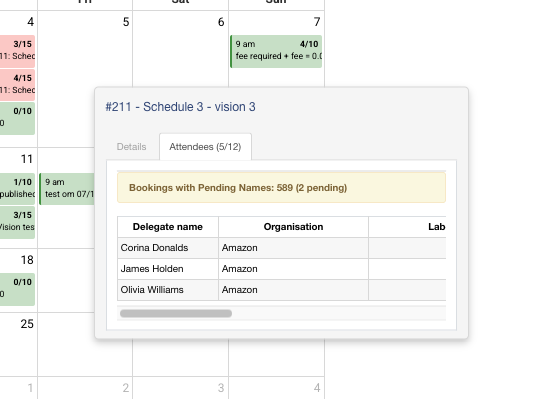
If you work from the calendar view, pending names appear in the same format as the schedule view.
How to check:
Go to Timetable
Select the Timeslot for the relevant course
Click into Attendees
Look for the Bookings with Pending Names banner
This gives trainers or operations staff a quick overview without going into the schedule screen.
Upcoming Booking Revenue Report
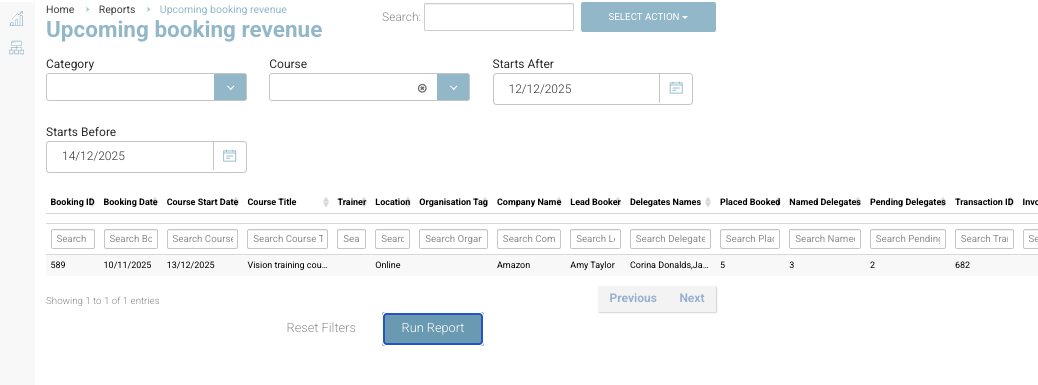
The Upcoming Booking Revenue Report provides a reporting-based method to view pending names in bulk - based on the start date of the schedule
The report includes a Pending Delegates column, showing exactly how many names are still outstanding for each booking.
This method is ideal for:
High-volume training providers
Weekly operational checks
Revenue + allocation cross-checks
How to view it:
Go to Reports
Select Upcoming Booking Revenue
Apply filters as needed - based on start date
Review the Pending Delegates column