
Bookings Note | Special requirements box to view as admin
The Special Requirements Box is an optional setting that can be enabled on your CourseCo platform.
When active, a text box appears at checkout allowing bookers to enter free-text notes about their delegates (for example: “Delegate is vegan”, “Hard of hearing – needs front-row seating”).
When the booking is created, this information is stored on the booking as a Booking Note in the Special Requirements area. Admins can see and update this note at any time.
Many clients also use this as an internal notes field to manage admin follow-ups (for example: “Chase payment”, “Pending invoice”, “Callback main booker”).
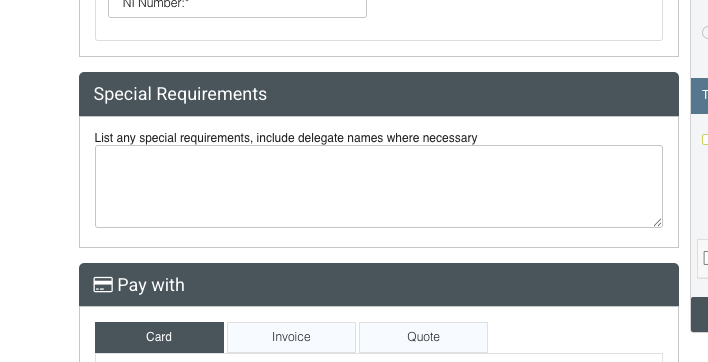
Checkout | special requirements box
1. What Bookers See at Checkout
When the feature is enabled:
A Special Requirements text box appears on the checkout page.
The booker can type any relevant details, such as:
Dietary requirements
Accessibility needs
Other delegate-specific notes
Important: After the booking is completed, bookers cannot access or see this note again. It is for internal/admin use only.
2. How Admins View and Edit Special Requirements
Once the booking is created:
The note entered at checkout is stored against the booking in the Special Requirements section/box.
Admins can:
Open the booking
View the additional info section
Edit or overwrite the note as needed.
Save changes for internal use.
Typical admin additions might include:
“Chase payment before course start”
“Waiting on delegate list from client”
“Trainer to bring extra materials for this group”
These notes are not visible to the customer; they’re only visible to admins inside the system.
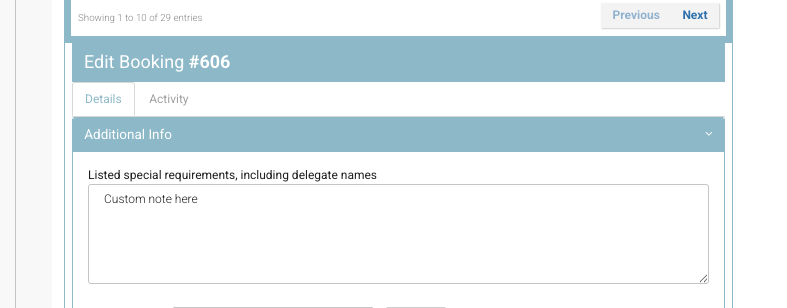
Admin booking | view booking note / edit
3. Special Requirements in the Upcoming Booking Revenue Report
The Upcoming Booking Revenue Report has been enhanced to include a Special Requirements column.
This means admins can:
Run the report for a chosen date range (e.g. next week, next month).
See all upcoming bookings in one list.
Review any Special Requirements notes for each booking without opening them one by one.
Common uses:
Pre-course planning (dietary needs, accessibility, equipment).
Internal workflow reminders (e.g. “Chase PO”, “Pending invoice”).
Trainer/venue preparation by sharing the report internally.
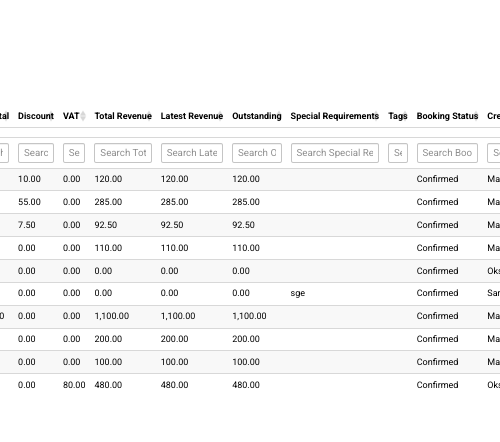
4. Admin-Only Use (When Bookers Don’t Enter Anything)
Even if the booker does not fill in the special requirements box at checkout, admins can still use this field:
When creating a booking manually.
When editing an existing booking.
Admins can enter or update any internal note in the Special Requirements field, for example:
“Client wants follow-up call after training”
“Do not send automatic reminder emails – handled manually”
“Use alternative entrance for wheelchair access”
Again, these notes are internal and will not display to the booker.
5. Key Points to Remember
The Special Requirements box is a configurable setting – it must be enabled for your site.
The field is visible to bookers only at checkout.
After checkout, only admins can view or edit the note.
The note appears:
On the Booking (Special Requirements section), and
As a column in the Upcoming Booking Revenue Report.
It can be used both for delegate needs and for internal admin reminders.