
Our latest feature iThis is where admins can manage when a cert is sent to the student.
Add On Feature | Please contact us to enquire about installing this on your platform
In some cases, attending the training might not be enough to receive a cert. Attendees might need to pass a practical exam eg lifting a box. This type of testing can’t be automated as its a visual test (Not MCQ)
Pass / Fail / retest / did not attend and Cancelled feature will help you manage this process, while also managing automated emails and renewal process, see renewal process below
Schedule > Attendee Tab | Pass / Fail / retest / did not attend / cancelled feature
Updating a delegate’s result is a two-step process.
First, the admin assigns the appropriate result per delegate (for example Passed, Failed, Did Not Attend, or Cancelled). Assigning a result only saves the status — it does not send emails or generate certificates.
Once results have been assigned, the admin then uses Bulk Actions to:
-
Trigger the relevant automated email templates, or
-
Generate certificates for delegates who have passed.
This separation gives you full control over when communications are sent and when certificates are issued.
Understanding Schedule > Attendee Tab Columns
-
Open Courses > Schedules
-
Navigate to the Attendee Tab
-
Review the list of attendees / Columns presented.
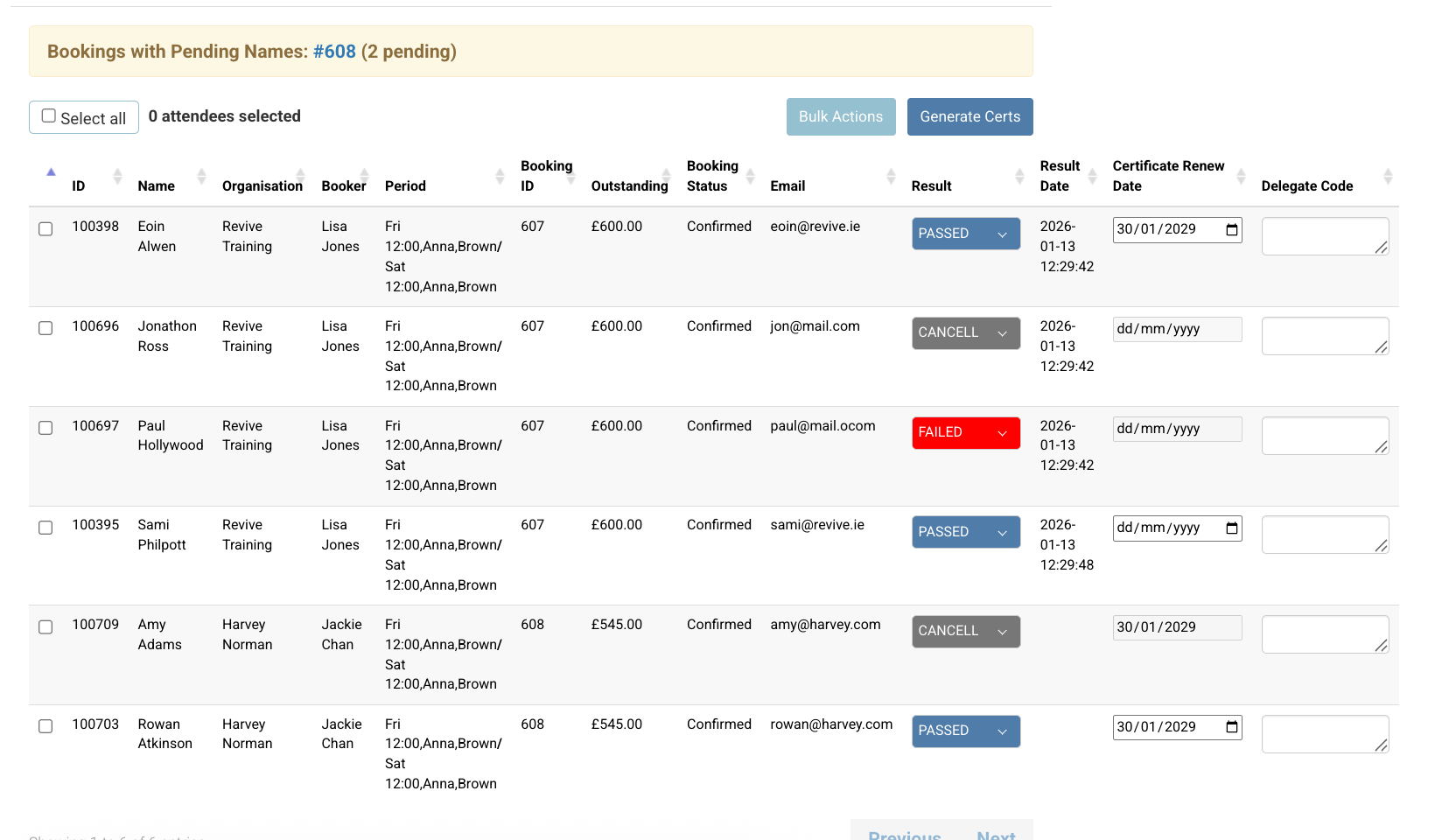
Schedule attendee tab > results display
Columns - note some columns may not be installed for you. Contact us to discuss
-
Attendee contact ID
-
Attendee Name
-
Attendee linked organisation*
-
Booker name*
-
Booking ID
-
Outstanding*
-
Booking Status
-
Email
-
DOB*
-
Result - Blank by default
-
Passed - passed the schedule, should receive a cert / renewal reminder
-
Failed - The should not receive a cert or renewal reminders in the future.
-
Retest - They didn’t pass this schedule, but should be retesting on another schedule
-
Did not attend - they didn’t attend the training / or did attend required amount
-
Cancelled - they cancelled before course starts and you will not refund them but you want to keep them on the booking anyway.
-
-
Result date - This is the date stamp of when the result was added by admin
-
Certificate Renew Date - this is the renewal date for the attendee
-
Attendance - this displays the number of Present slots only (not absent)* This column has been added as a default column
-
Present timeslots will display as eg 3/3
-
Absent for eg 1 would be 2/3
-
Attendance not recorded eg 0/3
-
-
Delegate Code: used for internal options or special code for the cert.
Steps to Update students as PASSED / FAILED / RETEST / DID NOT ATTEND / CANCELLED
We’ve recently made improvements to this process following feedback from our community.
-
Open Courses > Schedules
-
Navigate to the Attendee Tab on a schedule
-
New update: Per delegate assign their relevant status
-
The result saves automatically as you assign. No need to save again.
No automated emails or processes have been triggered with this status update - you must ‘Bulk action’ to trigger automations
-
You’re deciding then, are you sending emails regarding result update or generating the cert
Bulk Actions – Triggering Automated Emails eg ‘result saved, email booker an update’
If you have previously assigned the applicable results (for example, some delegates Passed and others Did Not Attend) and now want to bulk email the relevant email templates, you can do this using Bulk Actions without changing any results.
-
Open the Schedule
-
Go to the Attendee List
-
Select the
names to Bulk Action
-
Select Bulk Actions
-
Do not assign a result
-
The expiry date is not editable on the popup, it will take on the already applied expiry date.
-
-
Select Trigger Automation
-
Click Save
This will send the relevant automated emails based on the results already assigned to each delegate.
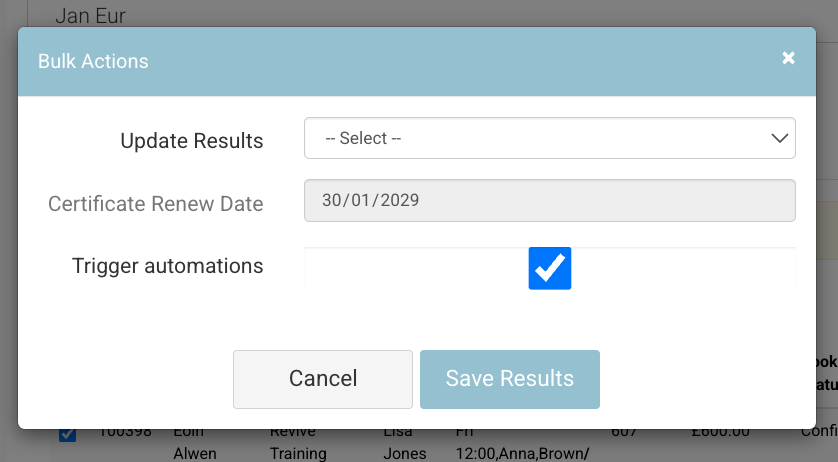
Outcome:
-
Relevant automated emails are triggered. (If configured in your platform)
-
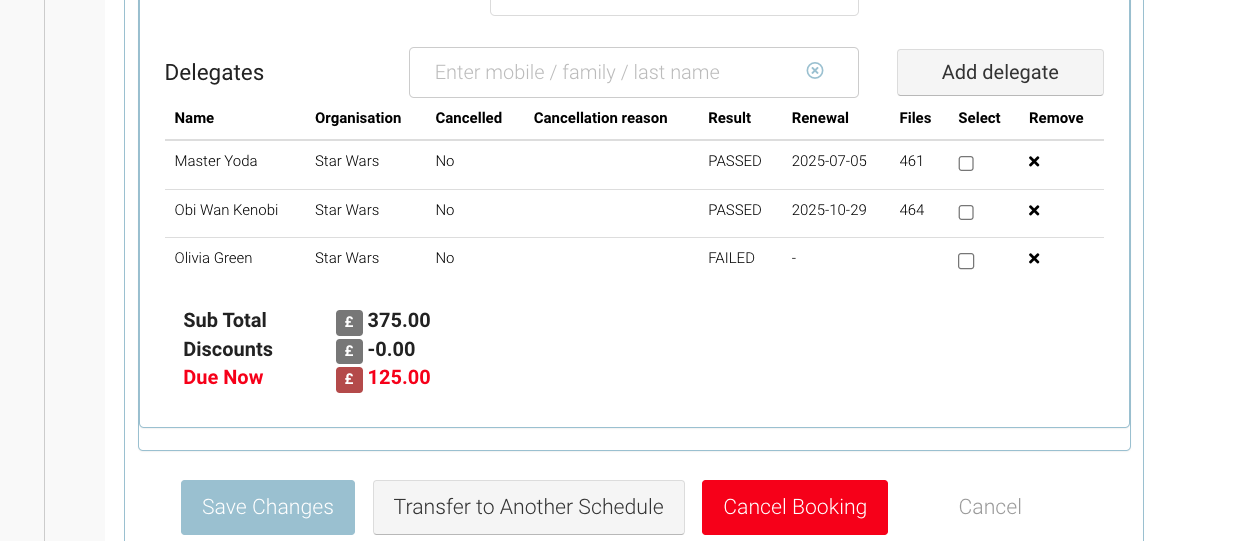
Admin can open the booking, and see the attendees listed with their Status & renewal date will populate for attendees who passed
-
Renewal reminder emails will send to the PASSED attendee only
-
No renewal reminder will be sent to FAILED / RETEST / DID NOT ATTEND / CANCELLED
Generating Certificates for Passed Delegates
Once you have set the results for your delegates, you can generate certificates only for those marked as Passed.
-
Open the Schedule
-
Go to the Attendee List
-
Ensure the relevant delegates are set to Passed
-
Tick the checkboxes next to the applicable delegates
-
Select ‘Generate Certs’ button
Certificates will be generated only for delegates with a Passed result, based on your configured certificate and automation settings.
Note: Generating certificates is a separate action from assigning results. Results must be set first before certificates can be generated.
Pass Status - Renewal Reminder Management
If your attendees receive a PASSED on the course, they are due for renewal in x amount of time. The passed attendees will receive renewal reminder emails if they pass only. FAILED or any other status means attendees will not receive renewal reminder emails.
Without the Pass / fail feature, all attendees will receive renewal reminder emails (as the system does not know who should / should not receive the alert)
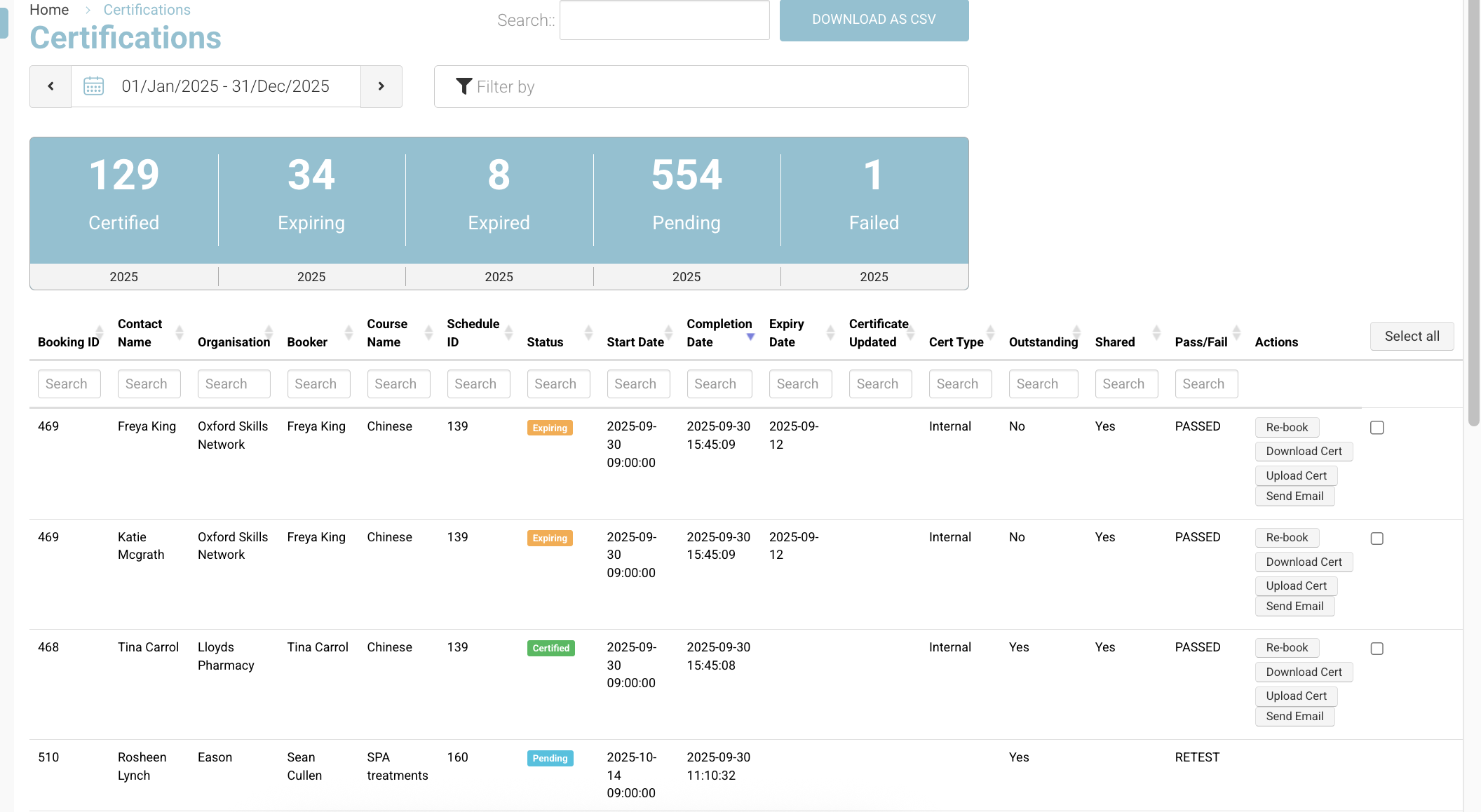
Bookings / Cert portal - Viewing Passed / Failed / retest / did not attend cancelled Attendees
Once you have completed the above, you can open a booking at any time and view the attendees Booking Status (Passed, Failed or Blank)
See example
When to Use Cancelled
Use Cancelled when:
-
A booking already exists
-
The admin is informed that a delegate will not attend
-
The cancellation refund period has passed
-
The delegate’s place is still chargeable
How to Mark a Delegate as Cancelled
-
A booking exists with the delegate already added
-
The admin is notified that the delegate will not be attending
-
The cancellation refund period has passed, so the place will not be refunded
-
The admin opens the Schedule
-
Navigate to Attendee List
-
Locate the delegate
-
Set their Result to Cancelled
-
Save the result
What Happens After Saving
Automated Emails
-
An automated email can be triggered when the result is saved
-
Email behaviour is client-configurable
Booking View
-
The booking will continue to show:
-
Delegate name
-
Result (e.g. Cancelled)
-
Invoice Backup Report
-
The Invoice Backup Report will:
-
Display the delegate
-
Show their share of the booked training place
-
Clearly indicate Result: Cancelled next to their name
-
This allows the client to accurately track chargeable places, even where attendance did not occur.
Important Tip ⚠️
Marking a delegate as “Cancelled” does not change schedule capacity.
-
The cancelled delegate will still occupy a spot on the schedule
-
Capacity is not freed up
-
This ensures accurate reporting and invoicing where the place remains chargeable
Automated email process | Optional emails to send to admin, booker or student - discuss with CourseCo
This option is not applied by default, please contact us to configure your options
When saving a result, you can choose to send emails (each status can use a different template):
-
Admin – any result / Pass / Fail / Did Not Attend
-
Booker – any result / Pass / Fail / Did Not Attend
-
Student – any result / Pass / Fail / Did Not Attend
(If no option is selected, no email is sent.)