Admin | Editing a Contact’s Login Role
Overview
Each contact in your system can have a login role, which determines the type of access they have when logging into your platform (e.g. Student, Trainer, or Org rep).
If a contact’s role changes over time (for example, from Org Rep to Student), admins can update this directly from the Contacts area.
Steps to Edit a Contact’s Role
Go to Contacts
Open the Contacts section from the left-hand menu.
On the Contacts list screen, you’ll see a Role column showing each contact’s assigned login role.
If the Role field is blank, the contact does not currently have a login.
Select the Contact
Click on the contact’s name to open their profile.
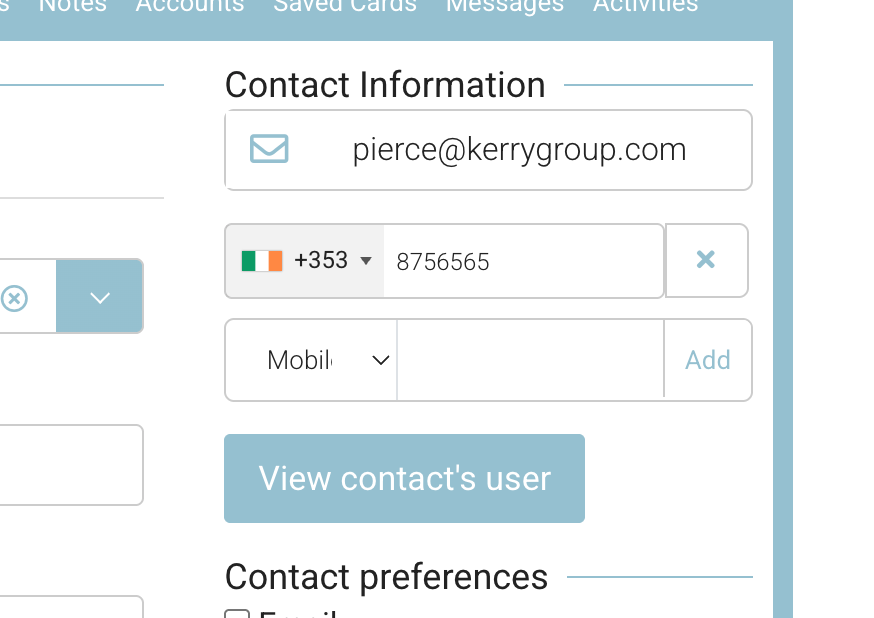
View the Linked User
Click the View User button to open their login account details.
Edit the User Role
On the next screen, select Edit.
From the Role Group dropdown, choose the new role for this contact.
Available options:
Student
Trainer
Org Rep
Save Changes
Click Save to apply the updated role.
The new role will now appear in the Role column on the Contacts list.
Notes
If a contact has no linked user, no role will be displayed.
You can only edit the role if the contact already has a login created.
Updating the role will adjust their access permissions across the platform accordingly.